
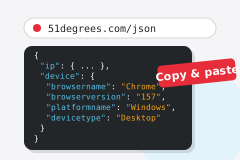
"Which browser are you using?" comes up on almost every support ticket, and the reply is often "Chrome, I think". Then you ask which version, and which operating system, and whether it's a phone, and the customer waits for each answer while the ticket sits open.
Wouldn't it be helpful if you could get all the information about the browser, the IP address and the connection in one simple cut and paste from your customer's computer?
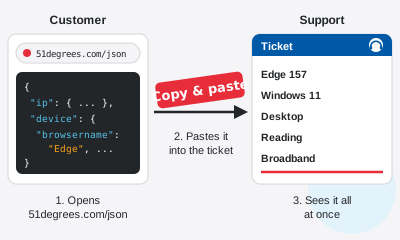
That's what 51degrees.com/json is for. Ask the customer to open it in the browser that's giving them trouble and paste what they see into their reply. It's a few lines of JSON with the browser and its version, the operating system, the type of device, when each came out, and the IP address with its rough location and type of connection. It holds the customer's IP address and rough location, so tell them that when you ask.
Here's what an answer looks like.
{
  "ip": {
    "ip": "192.0.2.10",
    "town": "Reading",
    "region": "England",
    "country": "United Kingdom",
    "countrygeonameid": "2635167",
    "latitude": 51.454,
    "longitude": -0.978,
    "locationconfidence": "High",
    "registeredname": "EXAMPLE-NETWORK",
    "connectiontype": "Broadband"
  },
  "device": {
    "hardwarevendor": "Unknown",
    "hardwaremodel": "Unknown",
    "devicetype": "Desktop",
    "releaseyear": 0,
    "releaseage": 0,
    "platformname": "Windows",
    "platformversion": "11.0",
    "platformreleaseyear": 2021,
    "platformreleaseage": 65,
    "browsername": "Edge (Chromium) for Windows",
    "browserversion": "157",
    "browserreleaseyear": 0,
    "browserreleaseage": 0
  }
}What each key tells you
The ip part is about the connection.
ipis the address the request came from. Behind a VPN or a company proxy, it's the VPN's or the proxy's.town,region, andcountryare where that address is. They come from the IP address, so a customer on a VPN shows up wherever the VPN is.countrygeonameidis the country's GeoNames ID, for matching against your own list of countries.latitudeandlongitudeare the address's rough position, moved at random by up to about a kilometer.locationconfidenceis High, Medium, Low, or Unknown. Check it before trusting the town.registerednameis the name the address range is registered under, usually the network that owns it.connectiontypeis the kind of connection, such as Broadband or Cellular.
The device part is about what sent the request.
hardwarevendorandhardwaremodelare who made the device and its model. A Windows browser doesn't say, so a Windows desktop reads Unknown. A Mac reads Apple and Macintosh.devicetypeis Desktop, SmartPhone, Tablet, and so on.releaseyearandreleaseageare the year the device came out and the months since. A year of 0 means it couldn't be dated, and then the age is 0 too. An age of 0 with a real year means it came out this month.platformname,platformversion,platformreleaseyear, andplatformreleaseageare the operating system, its version, and when that version came out.browsername,browserversion,browserreleaseyear, andbrowserreleaseageare the same for the browser. A customer on a browser three years old can be the whole story behind a ticket.
Put it on your help page
Add a line to your support form asking for it, something like "Open 51degrees.com/json and paste what you see. It includes your IP address, rough location, and browser version." The developer documentation lists every key it returns.
For your developers
51degrees.com/json is free and needs no key, so it's throttled to prevent abuse. That's fine for a customer pasting an answer into a ticket now and then.
It only works in a real web browser. Tools such as curl are treated as crawlers, and crawlers are sent to our page about licensing the data rather than given an answer.
To build the same answer into your own support form, create a Resource Key with the same properties. The form then asks the 51Degrees cloud service from the customer's browser, so the answer is the customer's own, with the same keys under device and ip, and because it uses your key rather than this page, this page's throttling doesn't apply.
The link opens the Configurator with the same properties ticked. The full set needs the Pro plan. The free plan gives the device type, the country, and the location confidence.
const response = await fetch(
  'https://cloud.51degrees.com/api/v4/YOUR_RESOURCE_KEY.json');
const customer = await response.json();